SensMax SE/DE Quick Start User Guide
1. Setup and Run the EasyReport Program
Install and launch the SensMax EasyReport program on your PC.
2. Connect the SE/DE Collector
Connect the SE/DE collector to your PC via USB while the EasyReport program is running. Wait for approximately 1 minute to allow the collector to synchronize its time.

3. Pair Sensors with the Collector
- 3.1 Insert the batteries into the sensors, observing the correct polarity.
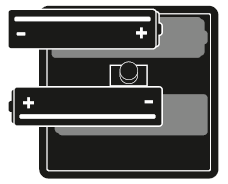
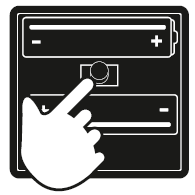
- 3.2 Press the pairing button inside the counter. Within the next 10 seconds, proceed to step 3.3.
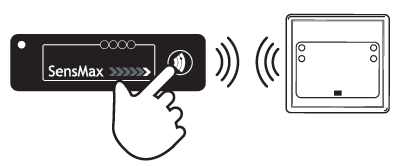
- 3.3 Point the collector at the counter and press the "READ" button.
- Note: Please disconnect the collector from the USB cable before attempting to read the sensor.
4. Sensor Mounting
- 4.1 To achieve the best counting precision, we highly recommend following the standard mounting scheme (typically at a height of 1.5m across the passage).
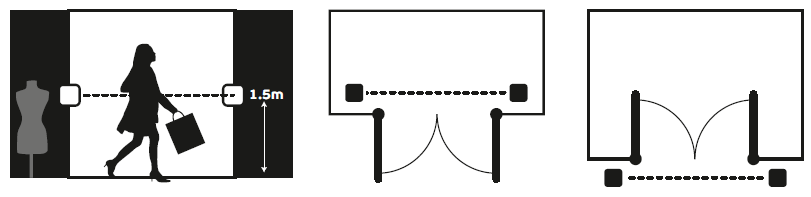
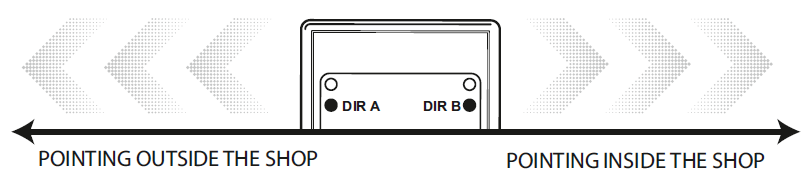
- 4.2 Please note that if you are using bi-directional sensors (DE model), by default, outgoing visitors are registered as DirA, and incoming visitors as DirB.
- DirA: Pointing outside the shop.
- DirB: Pointing inside the shop.
5. Initialization
Sensors will begin counting after the first reading by the collector:
- 5.1 Point the collector at the counter and press the "READ" button.
- 5.2 Ensure that the "CROSSING" or "DirA" / "DirB" light indicators blink when someone passes through the sensor beam.
6. Data Collection and Transfer
After several crossings have been recorded, you can collect the initial data from the counters and transfer it to the EasyReport program:
- 6.1 Read the data from the counters using the handheld collector.
- 6.2 Connect the data collector to your PC via USB.
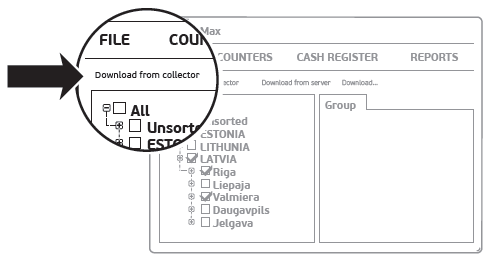
- 6.3 Click "Download from collector" in the EasyReport program interface.
7. Creating Reports
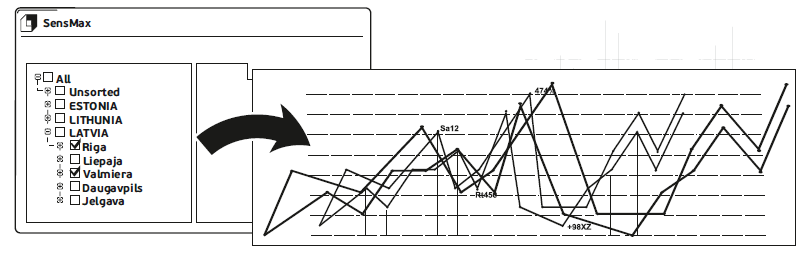
Create your first report by selecting the desired counters from the list and clicking the "REPORTS" button in EasyReport.
8. Charging the Collector
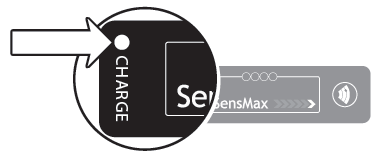
While the data collector is connected to the PC, its internal battery will charge. Once the battery is fully charged, the "CHARGE" light indicator will turn off.
Contacts
- Phone: +371 67553110
- Email: office@sensmax.lv
- Website: www.sensmax.eu
- Telegram: t.me/sensmax
- Facebook: facebook.com/sensmaxmanufacturer
- LinkedIn: linkedin.com/company/sensmax
SensMax is a registered trademark. SensMax reserves the right to make changes to the products described herein without prior notice. The information contained in this publication regarding device applications and the like is provided solely for your convenience. SensMax disclaims all liability arising from this information and its use. The use of SensMax devices in life-support and/or safety-critical applications is entirely at the buyer's risk, and the buyer agrees to defend, indemnify, and hold harmless SensMax against any and all damages, claims, suits, or expenses arising from such use. No licenses are conveyed, implicitly or otherwise, under any intellectual property rights of SensMax.